Input cannot communicate with device or is stuck on “Retrieving keyboard data”
Last updated About 2 months ago
If Input shows “No device found,” “No device connected,” or remains stuck on “Retrieving keyboard data,” the app is unable to complete communication with your device.
This can happen after waking your computer, switching between Bluetooth and USB, updating firmware, or when another application is using the device’s HID connection.
Try the steps below in order.
Fully quit and reopen Input
If the problem started after your computer woke from sleep:
Quit Input completely.
On macOS, use Input → Quit Input.
On Windows, exit Input from the system tray if it is still running there.
Wait a few seconds.
Open Input again.
Keep the device connected while Input starts.
Simply closing the Input window may not be enough if the app is still running in the background.
In some cases, other applications on your Mac can interfere with communication between Input and your Work Louder device.
The two most common applications known to cause this issue are Logi Options+ and Karabiner-Elements. Follow the steps below to resolve the conflict.
macOS: Secure Input is blocking communication
Secure Input is a macOS security feature that protects passwords and other sensitive information. Sometimes it remains active after your Mac wakes from sleep, is unlocked, or an authentication window closes.
When this happens, the keys on your device may continue working, but Input may be unable to update lighting, patterns, configuration, battery information, or device status.
Try these steps:
Complete or close any open password, passkey, or verification prompts.
If you use a password manager such as 1Password, open and unlock it, then switch back to Input.
Lock your Mac and unlock it using your password instead of Touch ID.
Completely quit and reopen Input.
If communication is still blocked, sign out of macOS and sign back in. Restart your Mac if signing out does not resolve the problem.
Input cannot disable Secure Input directly because it is controlled by macOS and the application that activated it.
macOS: check Input Monitoring
Open:
System Settings → Privacy & Security → Input Monitoring
Temporarily disable Input Monitoring for applications that may be accessing the device, especially Karabiner-Elements or Logitech software.
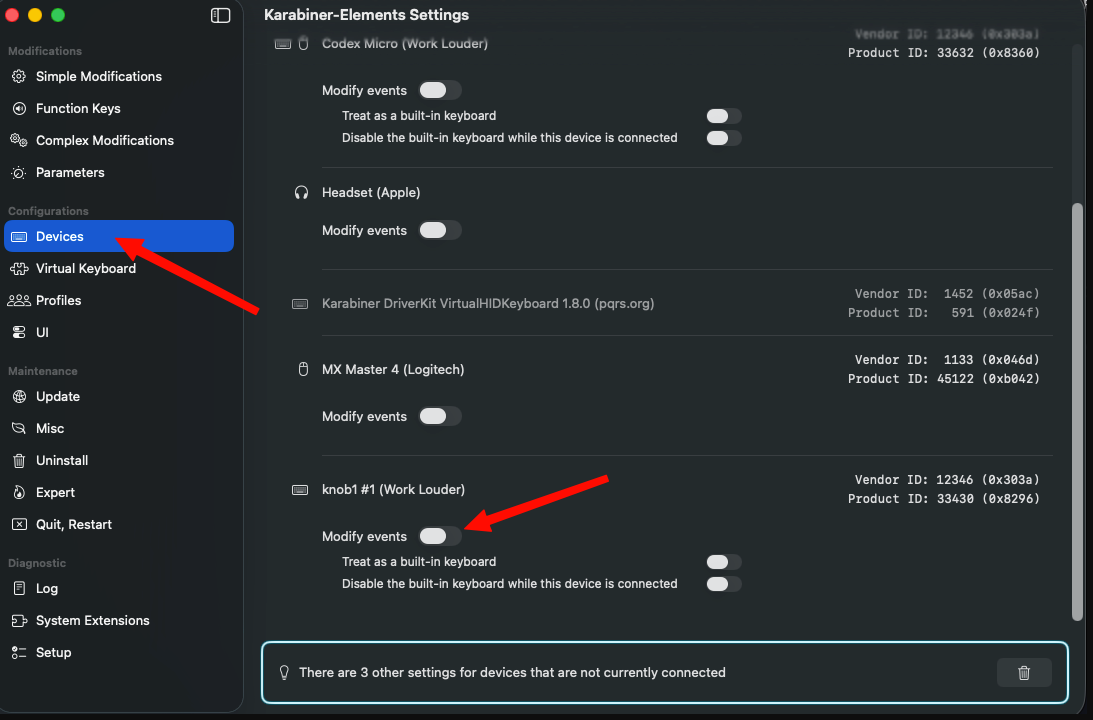
If you use Karabiner-Elements, also disable Modify events for the affected device. Then quit and reopen Input.
Logi Option+ interference
Logi Options+ may prevent Input from communicating properly with your device.
To resolve this, you can either:
Completely quit Logi Options+, including any background processes, or
Disable Input Monitoring permission for Logi Options+ in your macOS settings.
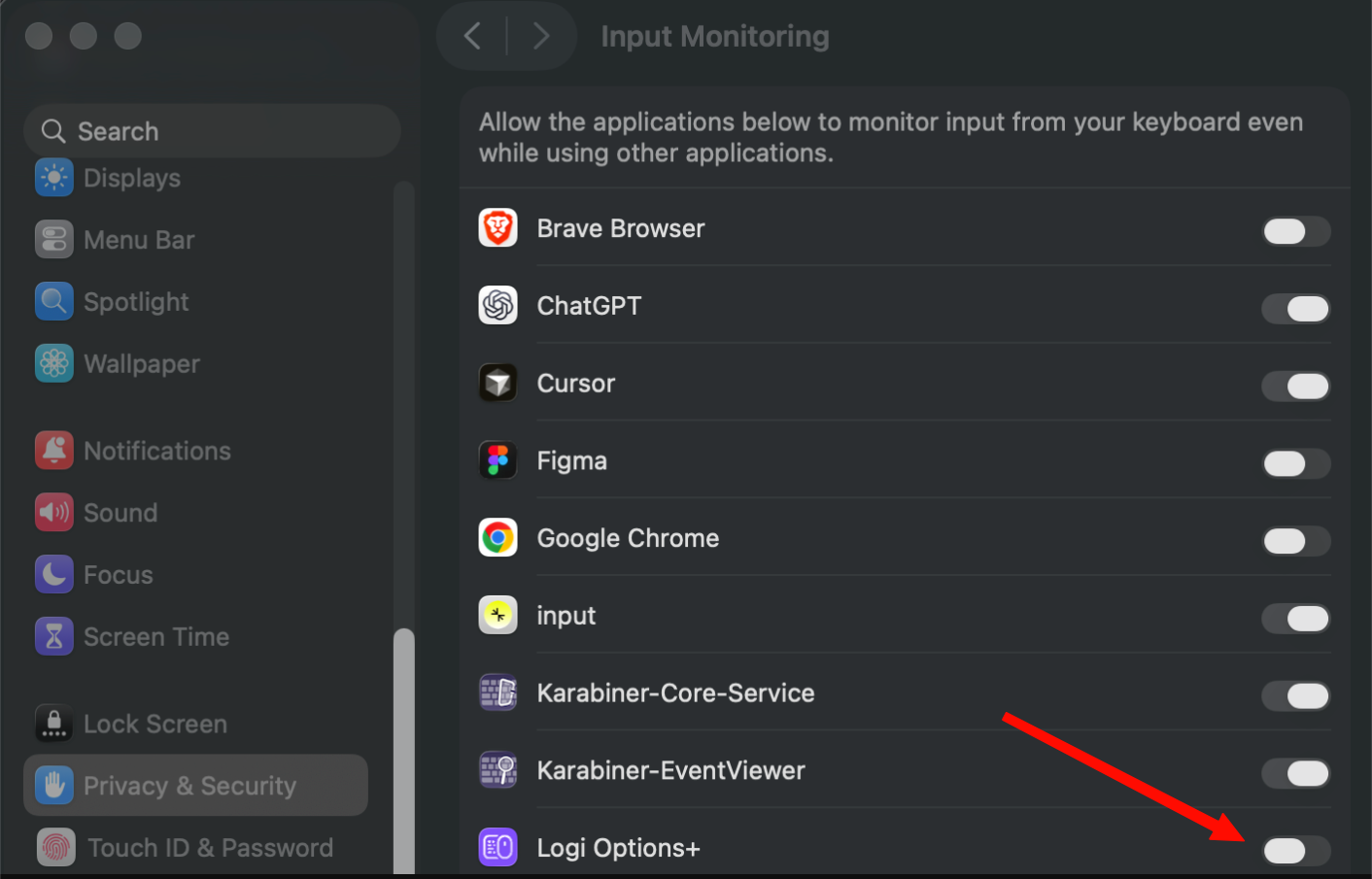
After making the change, reopen Input and check whether your device can connect.
Karabiner-Elements interference
Karabiner-Elements can also intercept events from Work Louder devices and interfere with Input.
To resolve this:
Open Karabiner-Elements.
Go to Devices.
Locate your Work Louder devices.
Disable Modify events for each Work Louder device.
Still having trouble?
If you do not have Logi Options+ or Karabiner-Elements installed, another application with Input Monitoring permission may be causing the conflict.
To identify the application:
Open your macOS Input Monitoring permissions.
Temporarily disable Input Monitoring access for all applications except Input.
Check whether your Work Louder device can now communicate with Input.
If it works, re-enable the other applications one at a time.
After enabling each application, check your device again.
If communication stops after re-enabling a specific application, that application is likely causing the conflict.
If you discover another application that interferes with Input, please let us know so we can add it to this guide and help other users.
Need additional help?
If you have followed the steps above and Input still cannot communicate with your device, please contact the Work Louder support team: How to contact Work Louder Support
Was this helpful?
Still need help? Share an idea